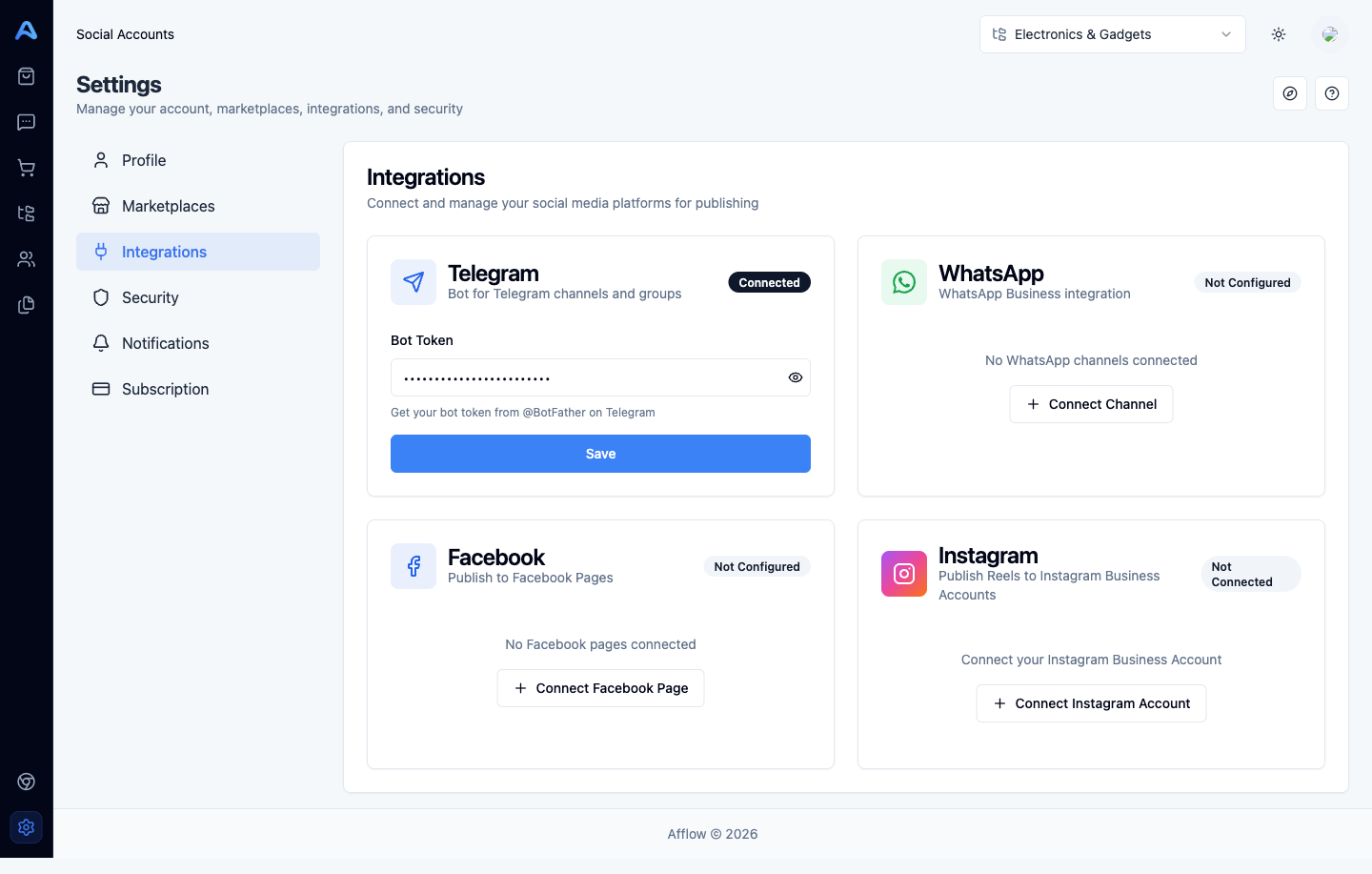





The Integrations tab connects Afflow to the social platforms you publish to. Until at least one integration is connected here, you cannot create publishable groups — there is nowhere for posts to go. Each integration uses its own connection method, so the cards look slightly different from each other.
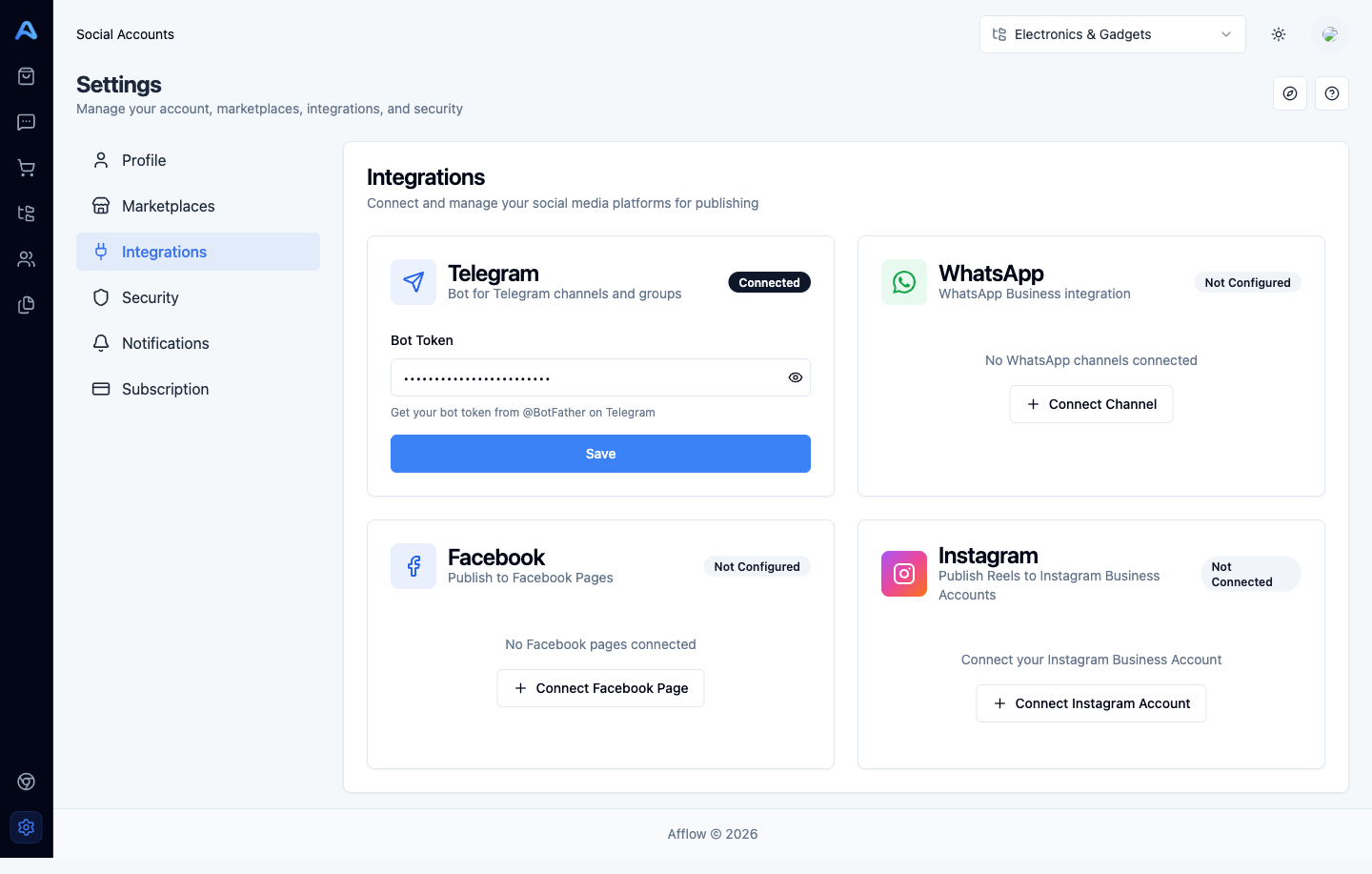
Telegram
Telegram is the simplest integration: paste a single Bot Token issued by Telegram's BotFather. The eye icon toggles between masked and visible. Hit Save and the card flips to Connected.
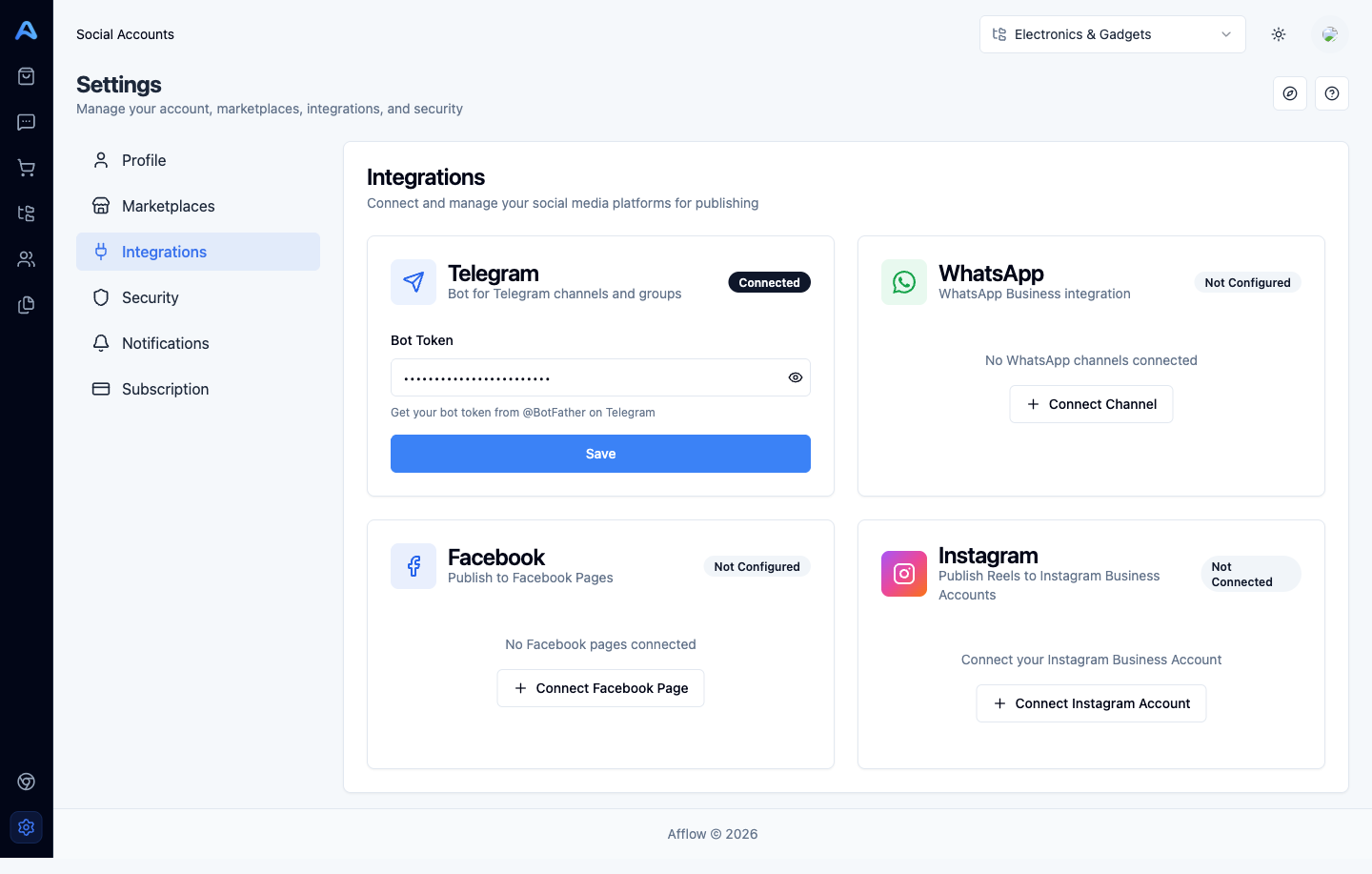
@BotFather, send /newbot, and follow the prompts. BotFather replies with the token — paste it here.WhatsApp is connected per-channel via the standard Linked Devices QR-code flow on your phone. The card shows your connected channels with a count badge. Click Connect Channel (or Manage Channels if you already have one) to open the WhatsApp Channels page at /settings/integrations/whatsapp.
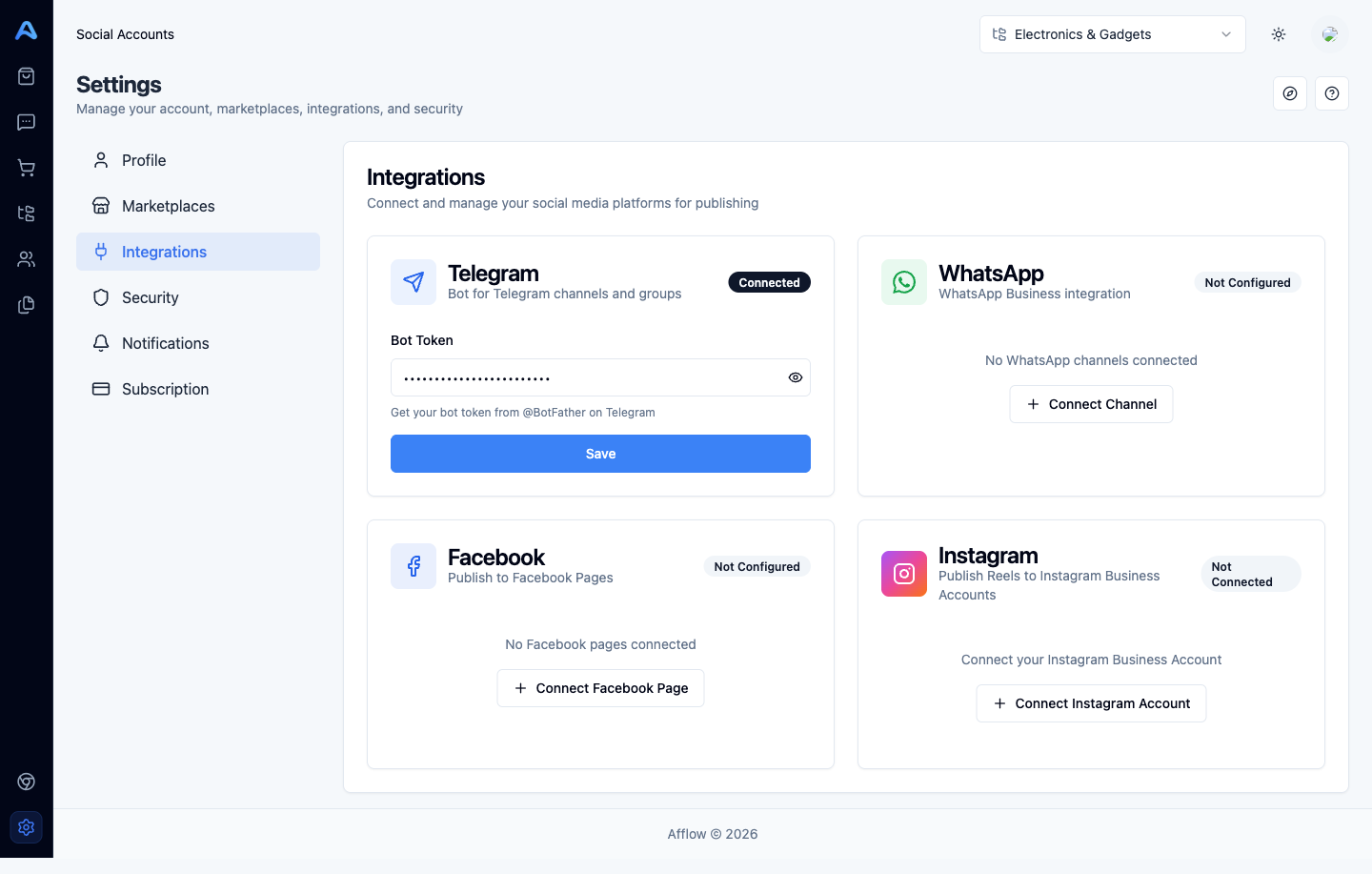
On the channel page, click Connect New Channel; Afflow initialises a session and shows a QR code. On your phone open WhatsApp → Settings → Linked Devices → Link a Device and point it at the QR code. The status colour-pill walks through the lifecycle:
- Initializing (gray) — Afflow is preparing the session.
- Scanning (yellow) — the QR code is ready and waiting for your phone to scan.
- Connected (green) — the channel is live and can receive posts.
- Sync Failed / Error (red) — re-scan the QR code or reconnect the channel.
Facebook is connected via a single OAuth flow: click Connect Facebook Page, authorise Afflow, and pick which Pages you want to publish to. Pages are listed back on the card with profile picture, name, follower count, and a status pill (Active, Expired, Error, Revoked). To add more Pages later, click Add More Pages on the same card.
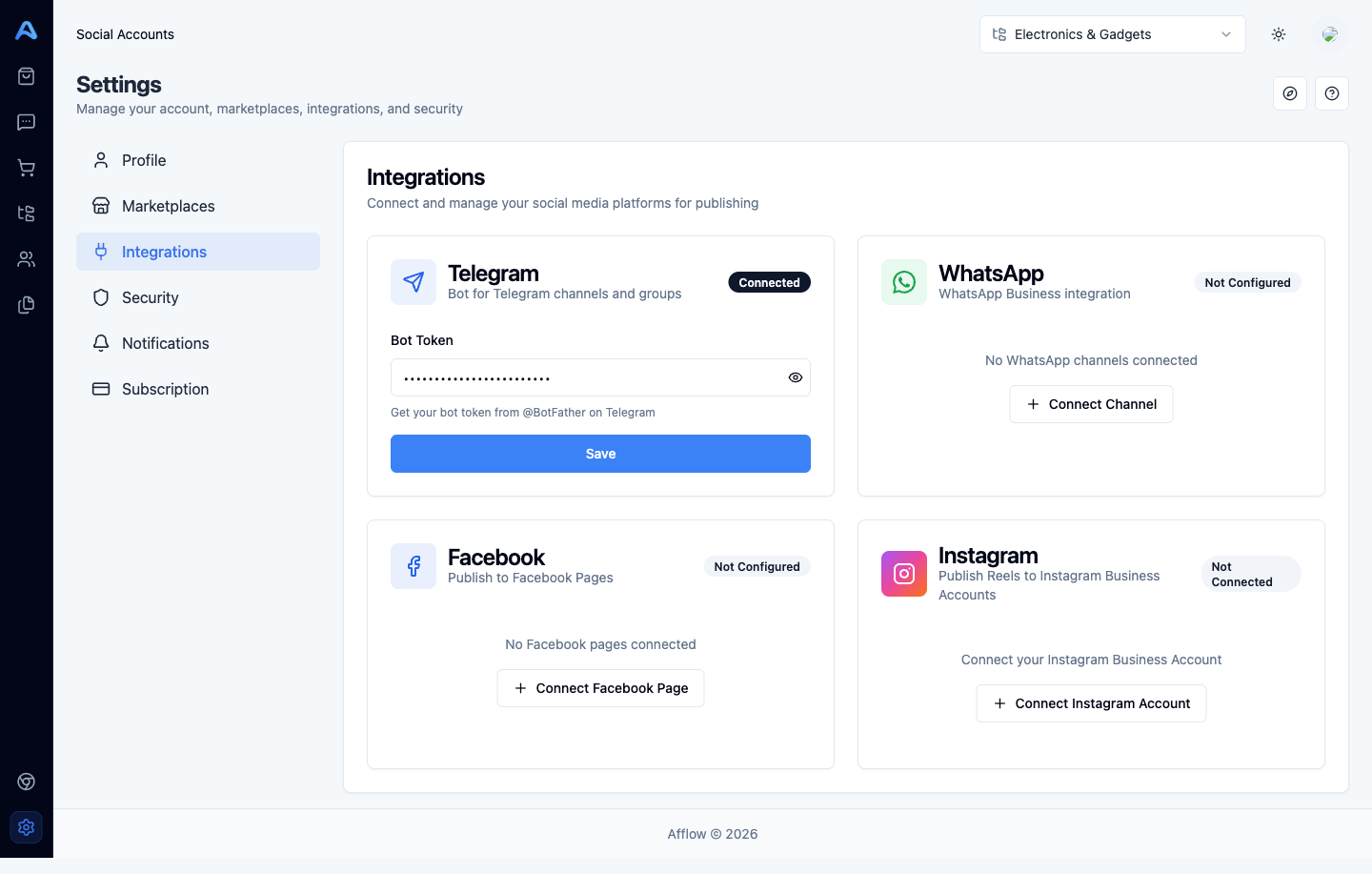
Instagram works the same way as Facebook — click Connect Instagram Account, authorise via Instagram's OAuth, and pick which Business Accounts to attach. Connected accounts show username, profile picture, follower count, and the same Active / Expired / Error / Revoked status.