





A product in Afflow is a marketplace listing — usually from AliExpress or Amazon — that you have added to your catalog. Once a product is in your catalog you can edit it, refresh its data, or turn it into a post that gets published to your groups.
What you see on the Products page
Products opens to a table of everything in your catalog, with summary tiles at the top: total products, how many are active, how many categories you span, and which marketplaces they come from.
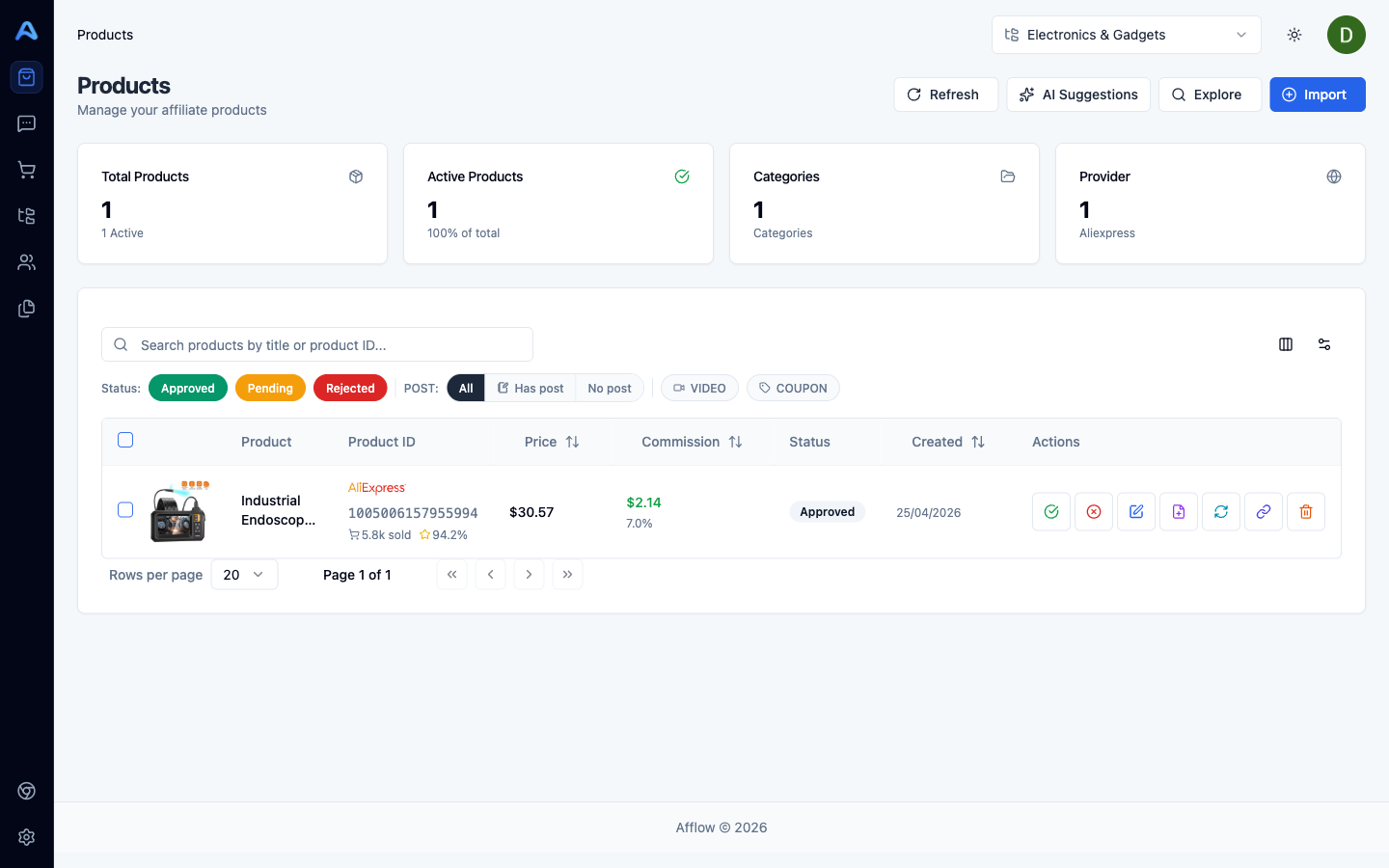
Above the table you have controls for searching by title, filtering by status (Approved / Pending / Rejected), filtering by whether the product already has a post, and toggles for "has video" and "has coupon". Selecting one or more rows reveals a sticky bulk action bar at the bottom for approve, reject, create post, and delete.
Where products come from
Four entry points feed your catalog:
- Import Products — paste a marketplace URL or product ID (single), or upload a CSV / XLS / XLSX (bulk).
- Explore Products — search the AliExpress catalog directly inside Afflow and import any result with one click. Visible only when AliExpress credentials are connected.
- AI Suggestions — Afflow proposes products to add based on what is already in your catalog. Subscription-gated.
- Chrome extension — a one-click importer you install in your browser. The fastest way to add a product while you are already on AliExpress.
Status: Approved, Pending, Rejected
- Approved — the default for newly imported products. Approved products count toward your "active" tile and are eligible for post creation.
- Pending — typically used for AI Suggestions waiting for your review.
- Rejected — declined; will not appear in default views and is not used for posts.
Products do not become posts automatically
Importing a product just adds it to your catalog. Nothing publishes until you turn it into a post — either one at a time using Create Post on a product card, or in bulk by selecting multiple products and clicking Create Post in the bulk action bar.