





Before you start
You can import from either AliExpress or Amazon. AliExpress credentials are not strictly required to import a product, but they unlock Explore Products, more reliable affiliate link generation, and cleaner empty states. Connect them under Settings → Marketplaces.
Every imported product needs to land in a category, so make sure you have at least one created under Categories.
Option 1 — Import a single product by URL
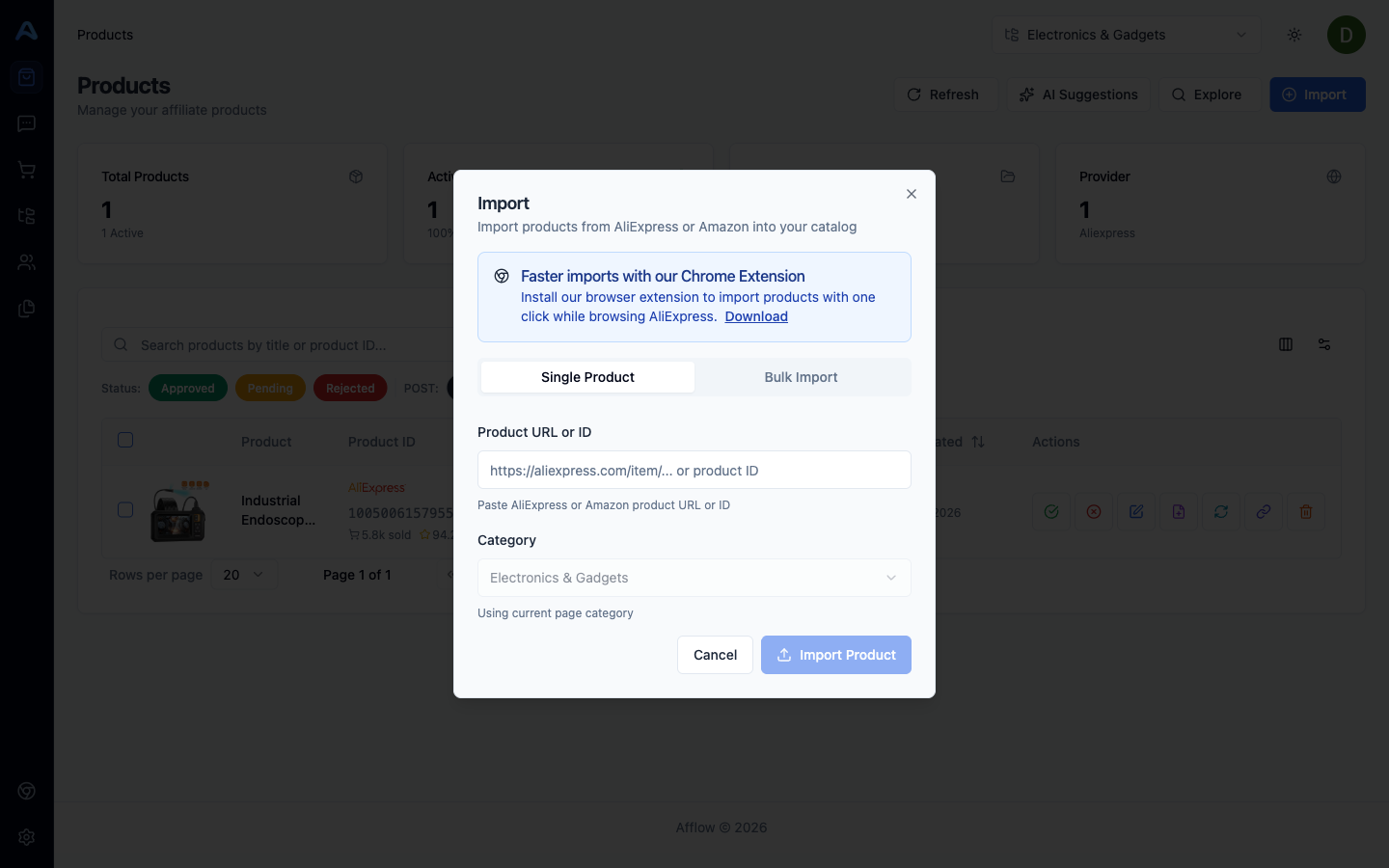
On the Products page, click Import Products. Paste the full URL of an AliExpress or Amazon product (or just the product ID), pick the destination category, and confirm. Afflow detects the marketplace automatically and pulls in the title, images, video, price, discount, coupon, rating, review count, and sales volume.
Option 2 — Bulk import from CSV / XLS / XLSX
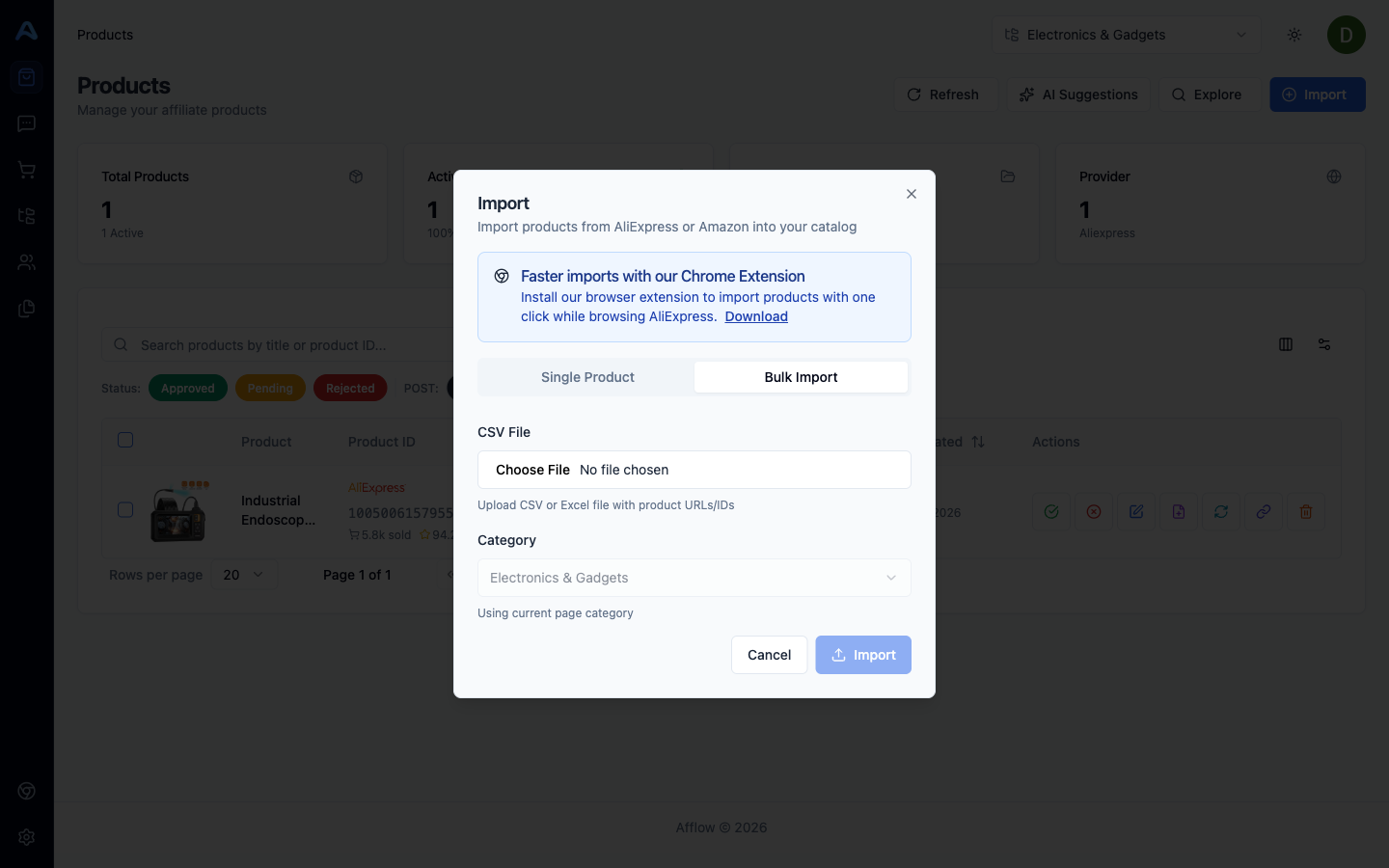
In the same modal, switch to Bulk. Upload a spreadsheet of URLs or product IDs (one per row), pick the destination category, and confirm. Every row is imported into the same category. Failed rows show in the result toast — usually duplicates, which are skipped silently, or invalid URLs.
Option 3 — Explore the AliExpress catalog inside Afflow
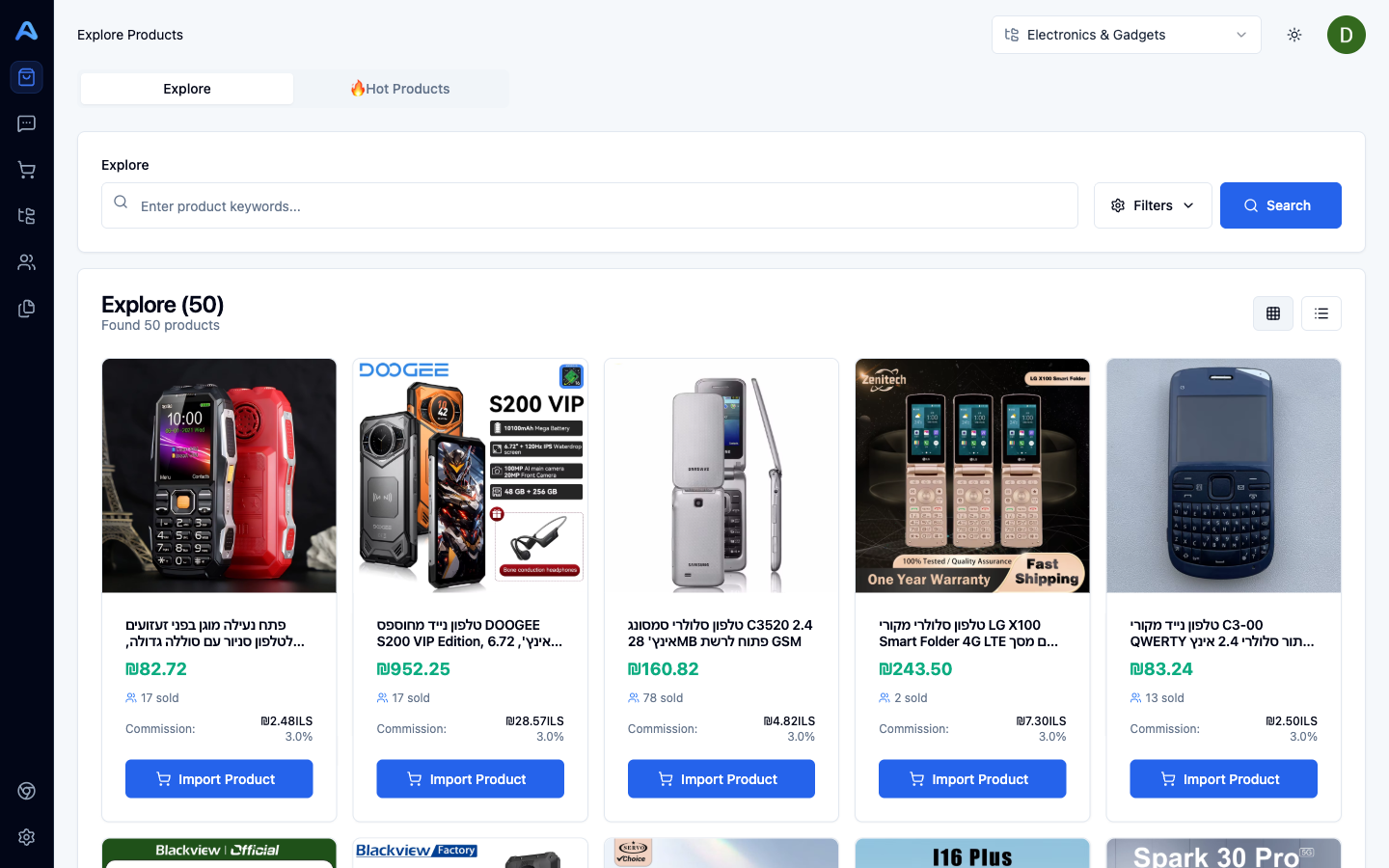
Click Explore Products in the page header (visible only with AliExpress credentials connected). You get two tabs:
- Explore — keyword search with filters for currency, language, category, and sort order (best-selling, price, sales volume, commission, rating). Each result has its own Import Product button.
- Hot Products — a curated trending feed. Refresh has a 30-minute cooldown so the list does not churn every time you open the page.
Option 4 — The Chrome extension
Install the official Afflow extension from the Chrome Web Store. Once installed, every AliExpress product page gets a one-click Import to Afflow button — no pasting URLs, no switching tabs. The link to install is shown inside the import modal.
What happens after import
The product lands in your catalog with status Approved by default. From here you can:
- Open it in Edit to refine title, description, price, images, or commission rates.
- Click Sync from Source on the edit page to refresh marketplace data later.
- Click Create Post to start writing a publish-ready post for it.
- Move it to a different category or change its status from the table.