





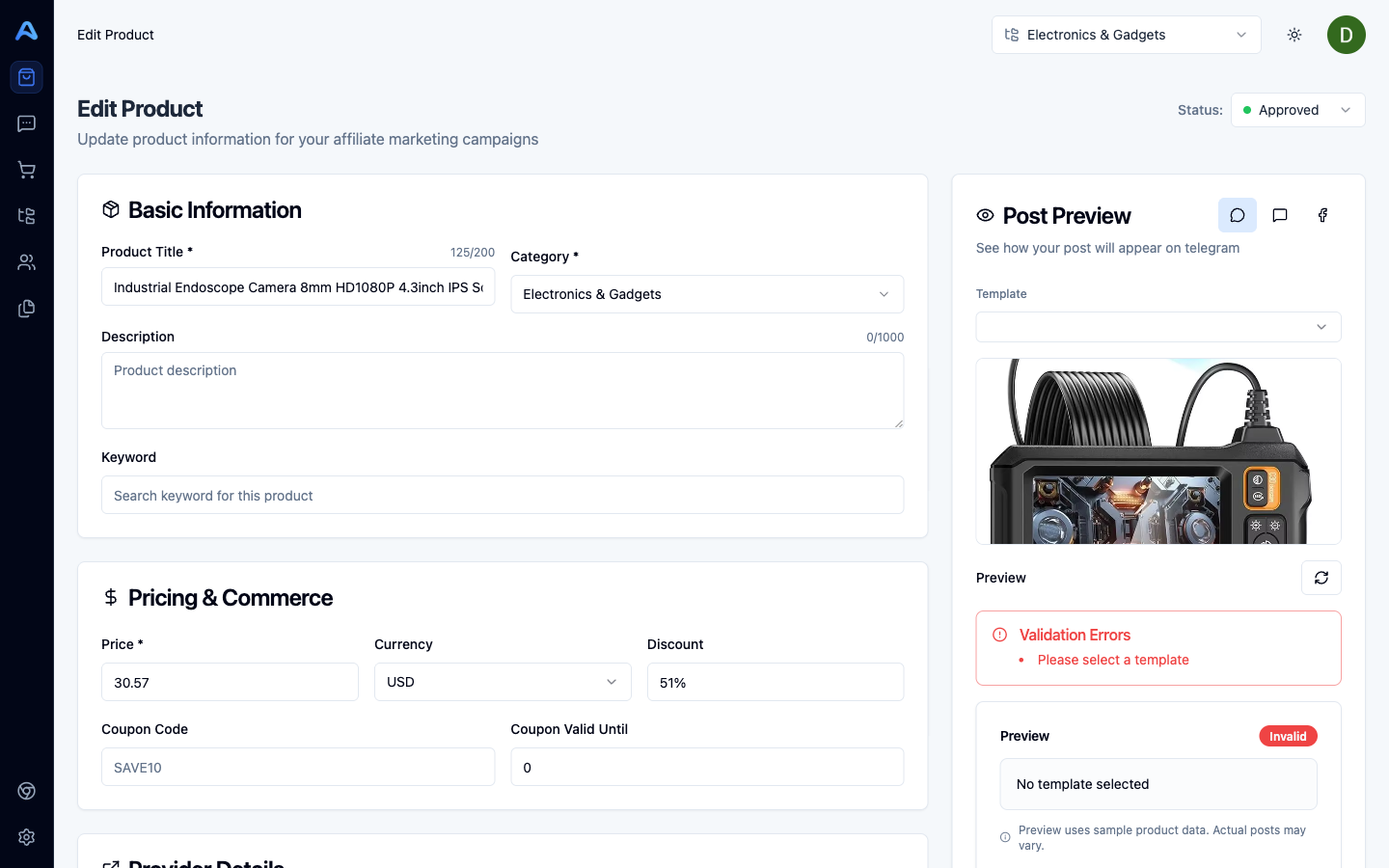
From the Products table, click any product to open the editor at /products/{id}/edit. The edit page is split into a form on the left and a live product preview on the right.
Editable fields
- Title — up to 200 characters. The editor shows a live counter.
- Description — up to 1000 characters. Free-form; used by AI when writing posts.
- Category — change the destination category. Affects which posts the product can feed and which Explore filters apply.
- Price and currency — the price the post will display.
- Discount text — e.g. "10% OFF".
- Coupon code and expiration — shown in the post body until the expiration time.
- Provider and Provider Product ID — usually auto-detected, but editable if you ever need to override.
- Promotion URL — the affiliate link. Use Generate to have Afflow build one for you.
- Main image and additional images — paste image URLs; the gallery preview updates instantly.
- Video URL — optional product video, included in the post if Media settings on the category allow it.
- Rating, number of reviews, sales volume — social-proof numbers shown in posts.
- Commission rates — regular, hot/promotional, evaluation. Used by the commission calculator.
- Status — Approved, Pending, or Rejected, set from the quick toggle in the top right of the page.
Sync from Source
The Sync button (refresh icon) re-fetches live data from the marketplace and updates the price, discount, coupon, rating, review count, sales volume, and commission rates. Sync intentionally does not overwrite fields you have customised — your custom title, description, and image set are preserved.
Generate an affiliate link
If the Promotion URL field is empty (or you want a fresh one), click Generate. Afflow builds an affiliate URL from the product ID using your marketplace credentials when available, or fallback credentials otherwise. The result is dropped straight into the field; click Update Product to save.
Commission calculator
When both a price and at least one commission rate are filled in, a calculator appears showing the estimated earnings per sale at the regular and hot commission rates. It updates live as you edit — useful for sanity-checking whether a product is worth promoting before you create a post.
Create a post from the edit page
The Create Post button at the bottom of the edit page jumps straight to post creation for the product you are editing. It is always available, even if the product already has a published post — you can have multiple posts per product if you want different copy for different audiences.
Keyboard shortcuts
- Ctrl + S — save changes (Cmd + S on macOS).
- Esc — cancel the current edit.
- ← / → — jump to the previous or next product in the same category.
Bulk actions on the Products table
Back in the table, selecting one or more rows reveals the bulk action bar at the bottom of the screen with four actions: Approve, Create Post, Reject, and Delete. Delete asks for confirmation. Create Post generates a draft post for every selected product in one go, in the category each product already belongs to.