





An order in Afflow is an affiliate sale your tracked link earned on AliExpress. Afflow pulls these orders directly from your connected marketplace account, enriches them with product details, and — when the buyer clicked an Afflow tracking link — attributes them back to the exact post that drove the conversion.
Where orders come from
Orders are fetched from your AliExpress affiliate account using your connected API credentials. Until those credentials are set up under Settings → Marketplaces, the Orders page shows a connect-AliExpress empty state instead of any data.
How a sync works
Pick a date range with the date picker at the top of the page. Afflow fetches all orders that fall inside that window:
- Refresh — re-reads orders Afflow already has stored for the selected range. Use this after editing or deleting rows.
- Sync — calls AliExpress to pull the latest order data for the selected range, creates new rows, and updates existing ones with the latest commission and status.
- Last synced — a timestamp under the Total Orders tile so you know how fresh the data is.
The summary tiles
Above the table, four tiles summarise whatever rows currently match your filters:
- Total Orders — count of rows in the current view.
- Total Amount — sum of order values (what the buyer paid).
- Total Commission — sum of your earnings on those orders.
- Avg. Commission Rate — average commission percentage across the visible rows.
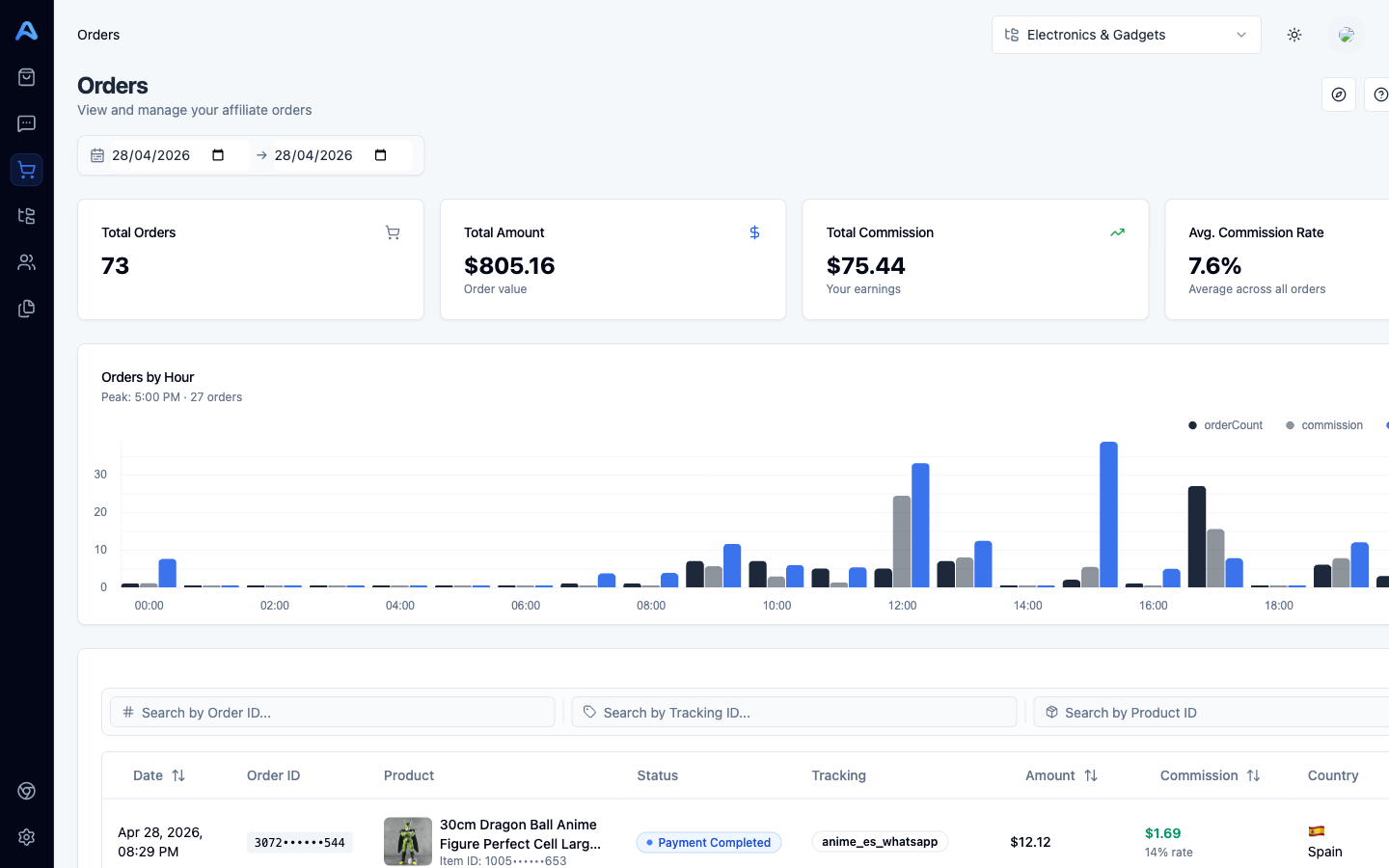
Orders by Hour chart
When the date range covers a single day, an Orders by Hour chart appears under the tiles. It shows order count, commission, and average order value bucketed by hour of day, with the peak hour called out at the top. Pick a multi-day range to hide it.
The orders table
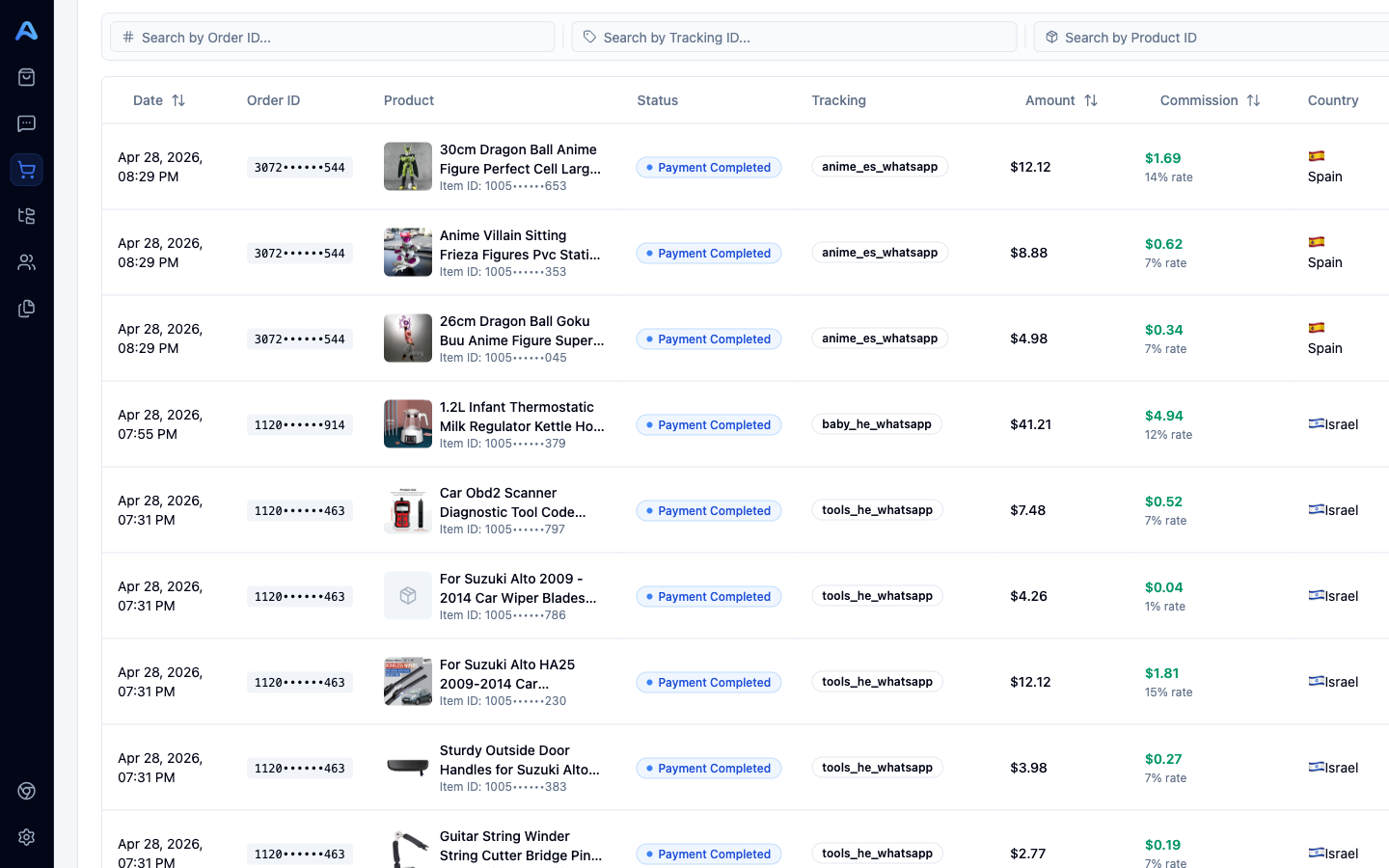
The table is the heart of the page. Default columns:
- Date — when the order was placed on AliExpress (sortable).
- Order ID — the marketplace's order number, copyable from the row actions.
- Product — product image, title, and AliExpress item ID. The title links straight to the product on AliExpress.
- Status — the order's current state at AliExpress (see the next article for what each status means).
- Tracking — Afflow's tracking tag for the link that produced this order. Click the badge to filter the table to every order from the same tag.
- Amount — what the buyer paid, in the order's currency (sortable).
- Commission — your earnings on this order in USD, with the commission rate shown underneath (sortable).
- Country — buyer's shipping country.
- Actions — the row menu (copy IDs, view product, view on AliExpress, view post tracking, import product, delete).
Filter and search
Above the table, three search fields let you narrow the view by Order ID, Tracking ID, or Product ID. The summary tiles always reflect whatever the table currently shows, so filtering is also the easiest way to get a sub-total — for example, filter to a tracking tag and the tiles tell you exactly how much that link earned.