





A group in Afflow is a publishing destination — a Telegram channel, a WhatsApp group, a Facebook page, or an Instagram Business Account that you have connected to your account. When a post in a category is approved and published, Afflow sends it to the groups attached to that category. No groups, no publishing — your posts will be created and approved, but they will have nowhere to go.
What you see on the Groups page
Groups opens to a table of every connected destination, with summary tiles at the top: total groups, total members across all groups, how many distinct platforms you publish to, and how many groups currently have Auto-Publish switched on.
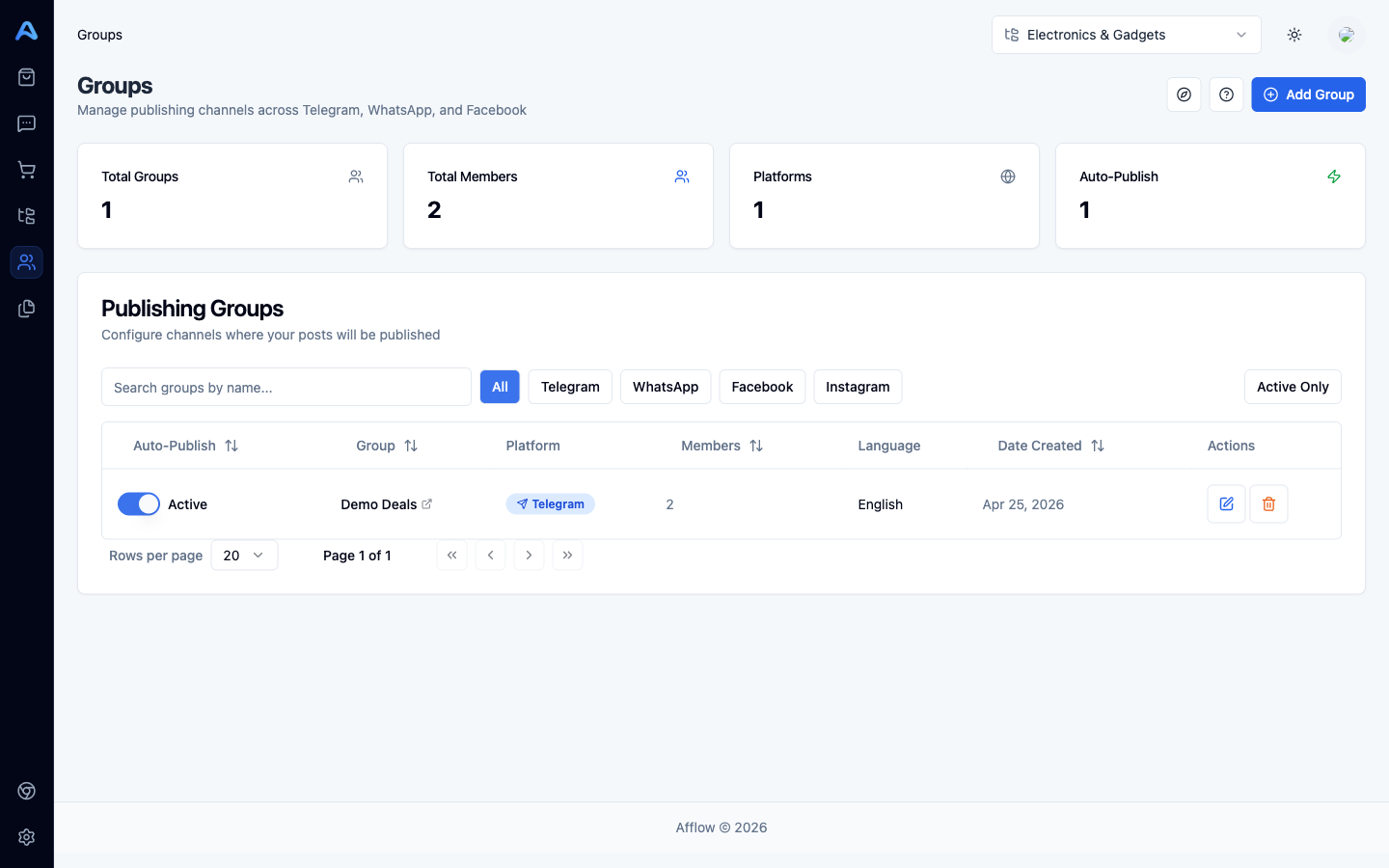
Above the table you have a search box, platform filter chips (All, Telegram, WhatsApp, Facebook, Instagram), and an Active Only toggle. Each row shows the group name, platform, member count, language, when it was created, and an Auto-Publish switch you can flip directly from the table.
Supported platforms
- Telegram — channels and groups, via a bot you connect in Settings.
- WhatsApp — your own WhatsApp groups, via a linked-device session you scan with your phone.
- Facebook — Facebook pages you administer, connected through Facebook Login.
- Instagram — Instagram Business Accounts (linked to a Facebook page), used for Reels.
Groups belong to one category
Every group is attached to exactly one category. The category controls everything about the post itself — language, tone, templates, scheduling, tracking — and the group controls only where it lands. The category switcher at the top of the app filters the Groups page to the groups attached to the active category, so what you see here always matches the context you are working in.
How publishing flows from post to group
- A post is created from a product and approved (manually, or automatically by Auto Pilot).
- You publish it — to one specific group, or to All Groups attached to its category, or via the category scheduler.
- For every group it lands in, Afflow picks a message variant, translates if the group's language differs from the category's, generates a fresh tracking link, and sends the post to that platform.
- Conversions on each link are attributed back to that exact post on that exact group, visible in Reports → Post Tracking.
Group limits
Your subscription plan caps how many groups you can have in total. When you hit the limit, the Add Group button is disabled and a tooltip tells you the cap. Delete an unused group or upgrade your plan to add more.