





Telegram is the quickest platform to get up and running on Afflow — there is no OAuth flow, no QR scan, no business account requirement. You create a bot, add it to your channel as an admin, paste the channel ID into Afflow, and you are publishing. This guide walks through it end-to-end.
Before you start
- A Telegram account on your phone or desktop.
- A Telegram channel that you own (or have admin rights on). A private channel works fine.
- At least one category set up under Categories — every group must be attached to one.
Step 1 — Create a Telegram bot and get its token
In Telegram, open a chat with @BotFather and send /newbot. BotFather will ask you for a name and a username, then reply with a bot token — a long string that looks like 123456789:ABC-DEF.... Copy it.
Step 2 — Save the token in Afflow
Open Settings → Integrations, find the Telegram card, paste the token into Bot Token, and click Save. Once saved, the card switches to Connected.
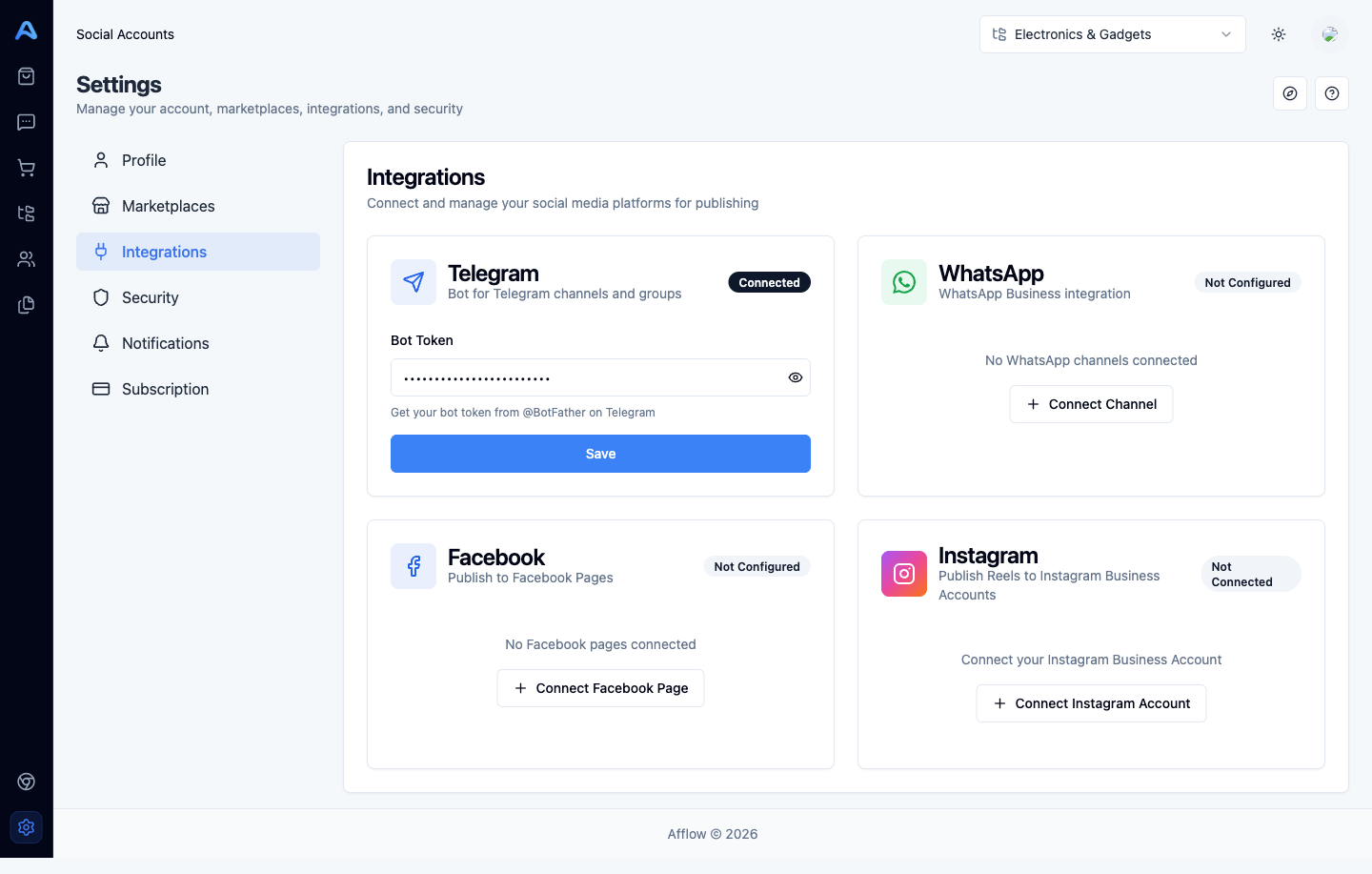
Step 3 — Add your bot to the channel as an admin
In Telegram, open your channel, go to its Administrators list, add your bot, and grant it permission to post messages. Without admin rights and posting permission, the bot cannot publish.
Step 4 — Find the channel ID
Afflow accepts two formats for the Channel ID:
- @username — for public channels with a handle (e.g.
@mydeals). - Numeric ID — for any channel, in the format
-100XXXXXXXXXX. The easiest way to grab it is to forward any message from your channel to a chat with @RawDataBot on Telegram and copy thechat.idvalue.
Step 5 — Create the group in Afflow
Open Groups and click Add Group. Fill in:
- Group Name — anything you want to recognise it by inside Afflow.
- Platform — choose Telegram.
- Language — the language posts will be sent in. Posts written in a different language are translated automatically before sending.
- Channel ID — the @username or numeric ID from Step 4. If the format is wrong, an inline error tells you what to fix.
- Tracking ID (optional) — a custom label for analytics.
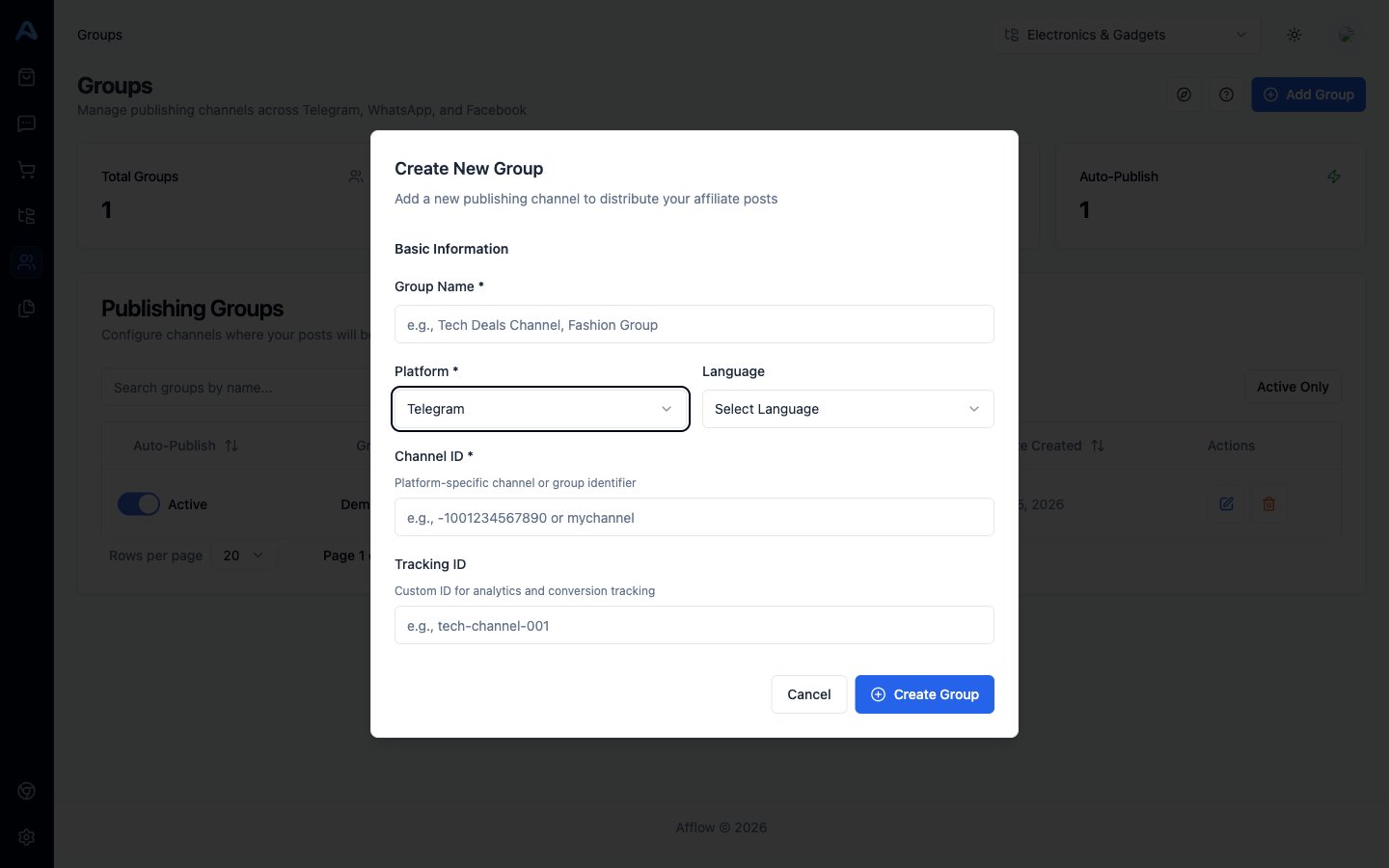
Click Create Group. The new group appears in the table with Auto-Publish switched on by default.
Step 6 — Send a test post
Go to Posts, find an approved post in the same category, and click Publish. Pick your new Telegram group as the destination. Within a few seconds the post should appear in your channel — title, images, body, footer, and the trackable link.