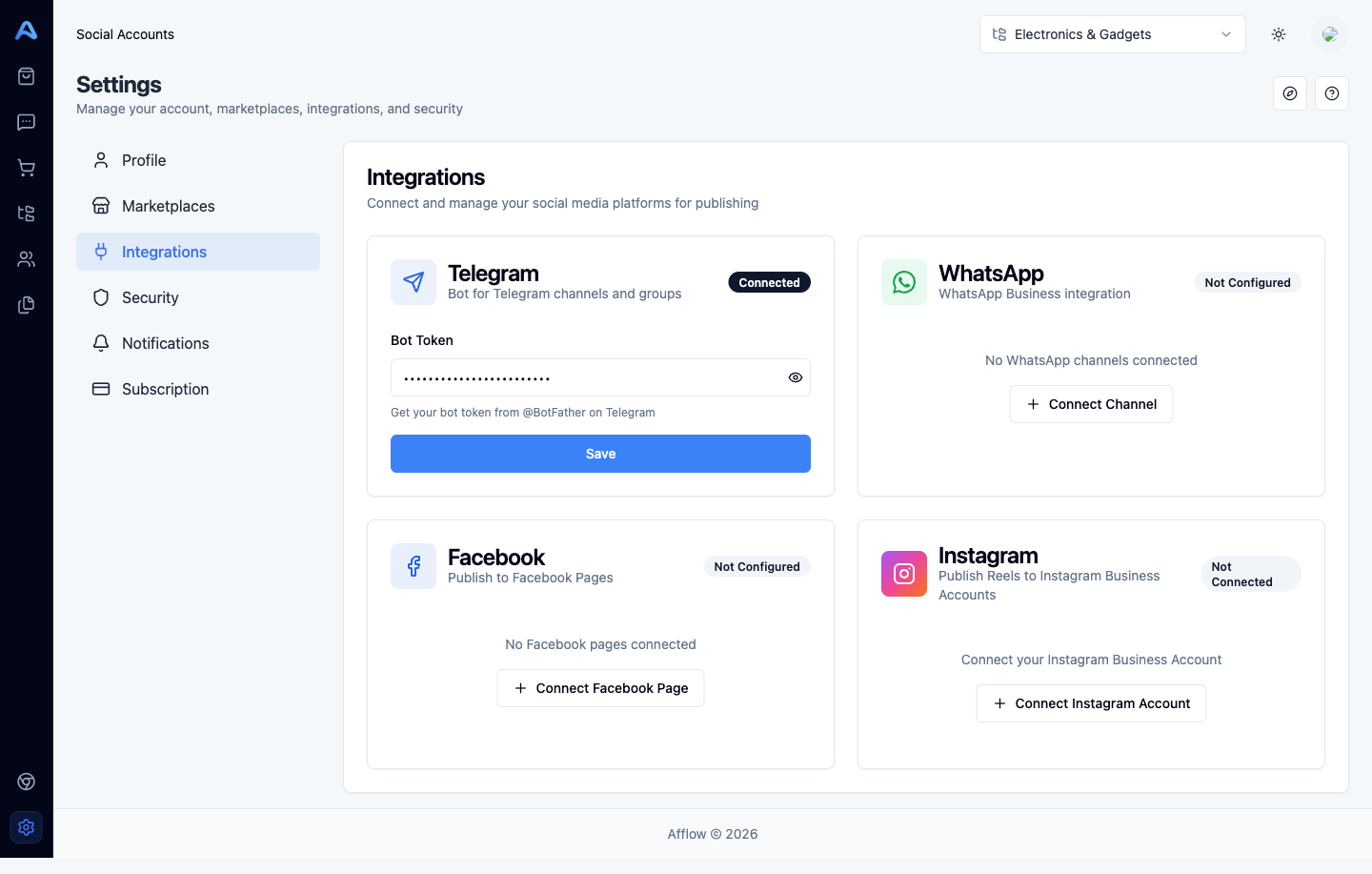





Each platform Afflow publishes to has its own connection flow. They all happen once, in Settings → Integrations, and once connected you can attach any number of groups to them on the Groups page.
Telegram
Telegram uses a bot you create yourself with @BotFather. The flow:
- Message @BotFather on Telegram, send
/newbot, follow the prompts, copy the token. - In Afflow, open Settings → Integrations, paste the token into the Telegram card, click Save.
- Add your bot as an admin to the channel or group you want to publish to, with permission to post messages.
- On the Groups page, click Add Group, choose Telegram, and enter the channel ID — either
@usernamefor public channels or the numeric-100XXXXXXXXXXform.
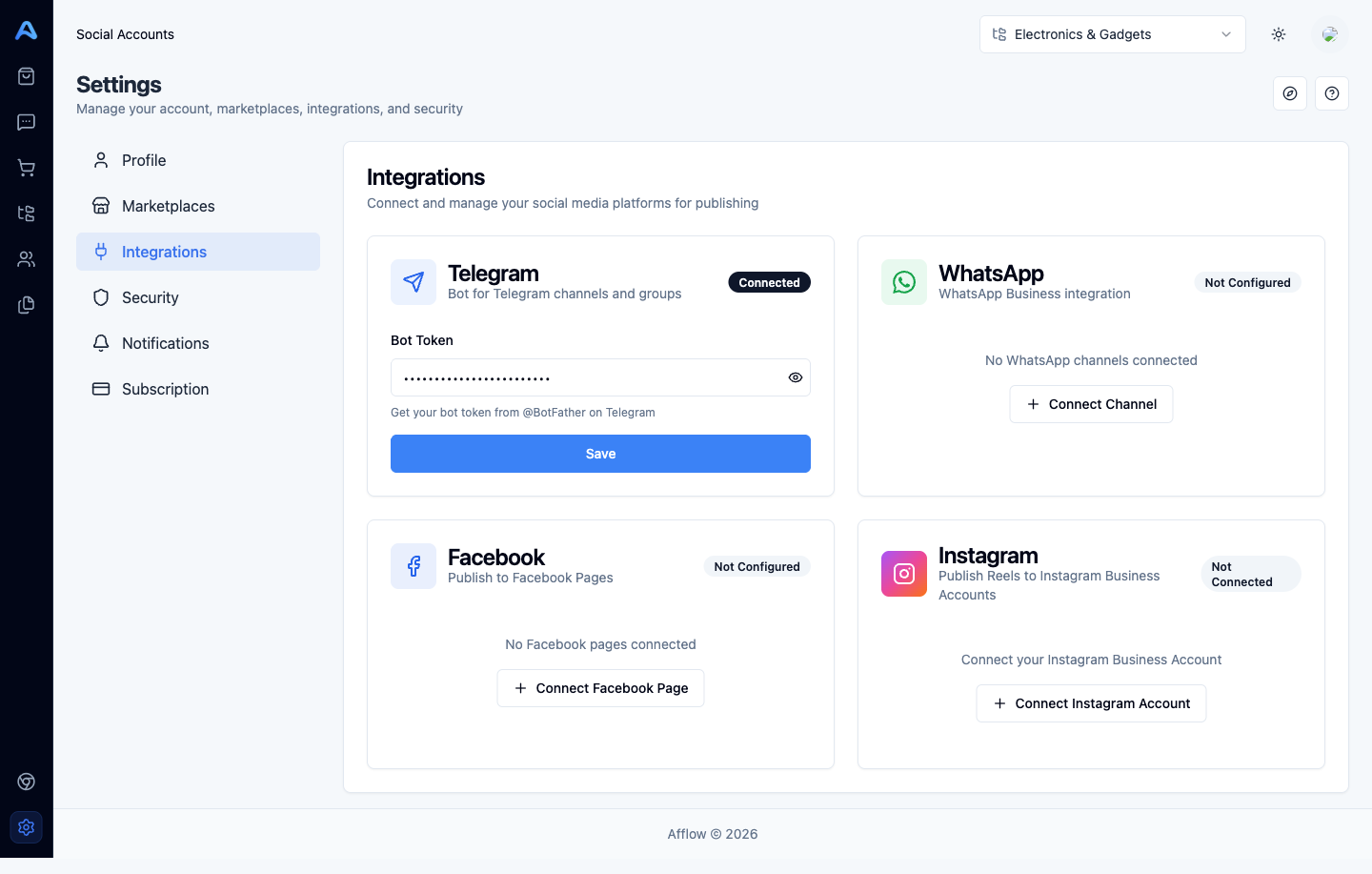
WhatsApp uses a linked-device session — the same mechanism as WhatsApp Web. You scan a QR code from your phone once and the session stays connected.
- In Afflow, open Settings → Integrations, find the WhatsApp card, click Connect Channel. You land on the WhatsApp Channels page.
- Click Connect New Channel. Afflow initialises a new session and shows a QR code.
- On your phone, open WhatsApp → Settings → Linked Devices → Link a Device, then point your camera at the QR code on screen.
- The channel status flips to Connected once your phone has paired.
Once a WhatsApp channel is connected, go to Groups → Add Group, choose WhatsApp, pick the connected channel, and use the Browse WhatsApp Groups picker to select one of your existing WhatsApp groups. Afflow auto-fills the name, member count, and group picture.
Facebook uses Facebook Login. You authorise Afflow once and it can publish to any Facebook page you administer.
- Open Settings → Integrations, find the Facebook card, click Connect Facebook Page.
- Sign in to Facebook in the popup and grant the requested permissions. Afflow needs access to your pages so it can post on their behalf.
- Back in Afflow, your pages appear in the Facebook card with their follower counts and a status badge.
- On the Groups page, click Add Group, choose Facebook, and pick the page from the dropdown — Afflow auto-fills the rest.
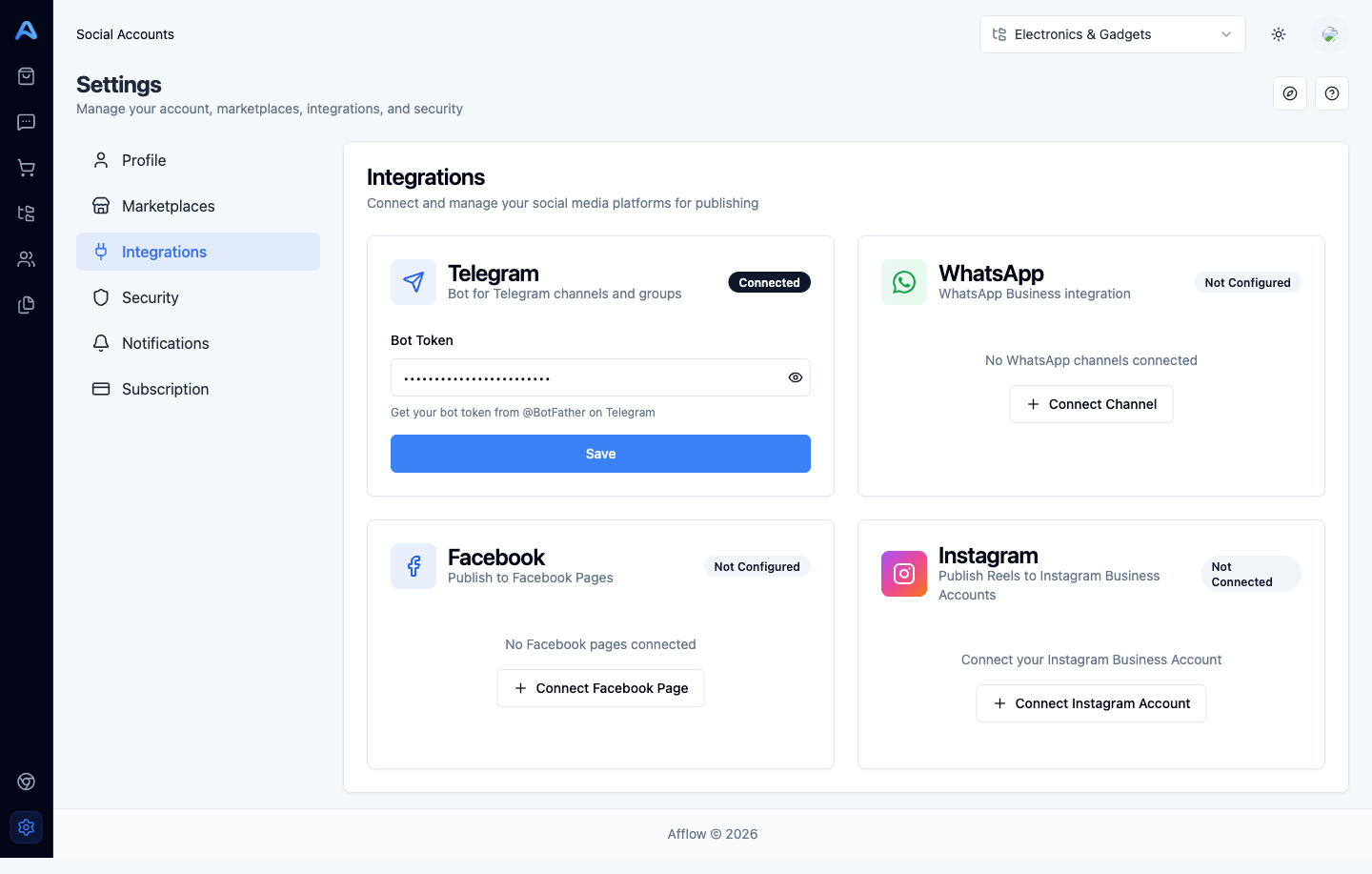
Instagram publishing on Afflow is for Reels and requires an Instagram Business Account linked to a Facebook page you administer. Personal Instagram profiles are not supported by Instagram's publishing API.
- Make sure your Instagram account is converted to a Business Account and is linked to one of your Facebook pages. This is done inside Instagram and Facebook, not in Afflow.
- In Afflow, open Settings → Integrations, find the Instagram card, click Connect Instagram Account, and complete the OAuth flow.
- Your linked Instagram Business Accounts appear in the card with their follower counts.
- On the Groups page, click Add Group, choose Instagram, and pick the account.